FREE · OPEN SOURCE · ONE CLICK
Bring Back Windows Photo Viewer on Windows 10 & 11
Restore the classic photo viewer in one click. No registry editing, fully reversible.
- Open source on GitHub
- Fully reversible
- No registry knowledge needed
The same photo, two very different windows
Photos app is built around a library, cloud sync and editing. Windows Photo Viewer shows the picture you double-clicked, and nothing else.
Opening a photo
Loads the gallery and library first, so there’s a pause before the picture shows up
The picture is on screen as soon as you double-click it
Toolbar
Editing, visual search, sharing and OneDrive sign-in prompts
File, Print, E-mail, Burn, Open. Zoom and rotate sit at the bottom.
Printing
Hidden behind the “…” menu
Print is right in the toolbar, one click to the print dialog
Browsing a folder
Filmstrip and gallery views to scroll through
Arrow keys step through the folder, F11 starts a slideshow
How to bring back Windows Photo Viewer
Three steps. You don’t need to open the registry editor.
-
Step 1
Download & run
Extract the ZIP and double-click RestoreWindowsPhotoViewer.exe. If SmartScreen appears, choose More info, then Run anyway.
-
Step 2
Click Restore
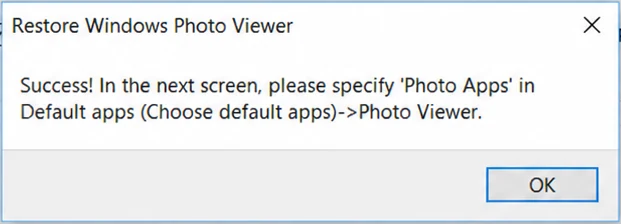
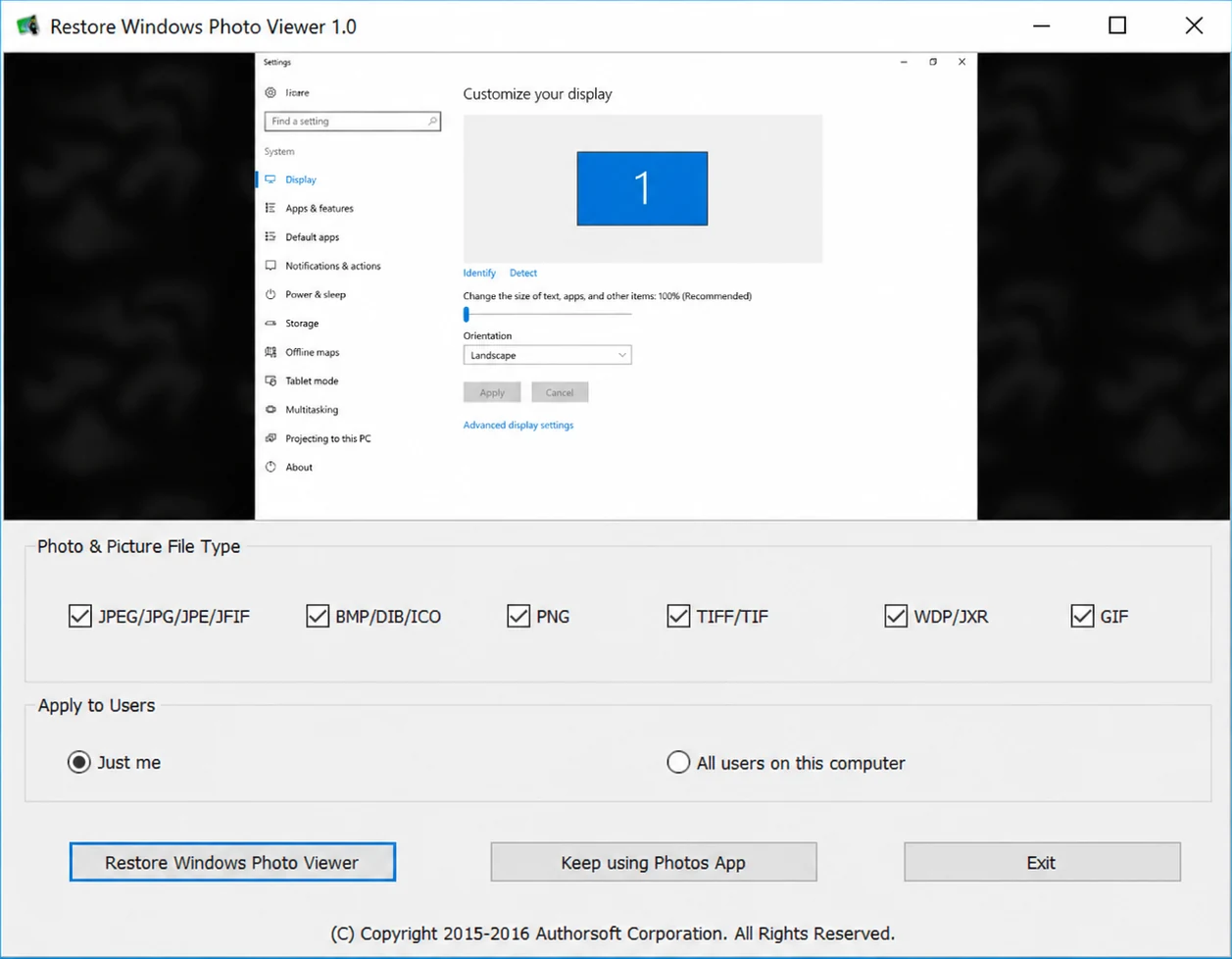
Pick the file types and whether it applies to just you or all users, then click Restore Windows Photo Viewer and OK.

-
Step 3
Make it the default
In Settings, Default apps, set Photo viewer to Windows Photo Viewer. Or right-click any photo, choose Open with, then Windows Photo Viewer.
What the tool does, and what it leaves alone
Windows Photo Viewer never left Windows. Microsoft hid it after Windows 8. This tool makes it selectable again.
Restore Windows Photo Viewer with one click
The tool applies the small set of registry changes that make Photo Viewer a default app option again and adds it back to the Open with menu.
- Choose which formats it opens: JPEG, BMP, PNG, TIFF, WDP, GIF
- Apply it just for you or for all users on the computer
- Your photos aren’t moved, changed or deleted
Undo anytime, switch back to Photos app
Changed your mind? Open the tool again and click Keep using Photos App. Windows goes back to opening pictures in Photos, the way it was before.
Nothing is uninstalled either way, so switching back and forth is safe.

Keep using Photos App reverses every change Restore made.
Works on Windows 10 and Windows 11
Including the latest updates. It’s a single portable .exe that runs without an installer and works completely offline.
No manual registry editing required
You don’t open regedit, import .reg files or look up which keys to change. The tool writes the changes and can take them back.
Why not just edit the registry manually?
The fix itself is a handful of registry keys. There are three ways to apply them, and they ask very different things of you.
| This app | Manual .reg file | Editing registry by hand | |
|---|---|---|---|
| No risk of typos | Yes | Only if the file is right | One wrong value breaks it |
| One-click undo | Yes | Needs a second undo file | Revert each key yourself |
| No tech knowledge needed | Yes | You merge a file you can’t read | Requires regedit |
| Choose file types and users | Checkboxes | Fixed in the file | If you know the keys |
Most download sites hand out a bare .reg file. This app applies the same fix, shows you what it covers, and gives you a way back.
Questions before you download
Can’t find your answer? Open an issue on GitHub.
Is it safe to use?
Yes. The tool only changes which app Windows treats as the default photo viewer. It doesn’t modify or delete any of your photos, and the change can be undone at any time from within the app.
Does it work on Windows 11?
Yes. Restore Windows Photo Viewer works on both Windows 10 and Windows 11, including the latest updates.
Why is Windows Photo Viewer not in my default apps list?
Starting with Windows 8, Microsoft hides Windows Photo Viewer from the default apps settings, even though the program files are still included in Windows. This tool re-enables it without removing or reinstalling anything.
Can I switch back to the Photos app later?
Yes. Open the tool again and click Keep using Photos App. Windows goes back to opening pictures in the Photos app.
Do I need admin rights?
Yes. Because it changes system default app settings, the tool needs administrator rights. If it doesn’t ask automatically, right-click the .exe and choose Run as administrator.
Ready to bring back your classic photo viewer?
Free and open source. Download the ZIP, run the .exe, click Restore.